> For the complete documentation index, see [llms.txt](https://docs.empe.io/llms.txt). Markdown versions of documentation pages are available by appending `.md` to page URLs; this page is available as [Markdown](https://docs.empe.io/develop/intro/managing-schemas.md).

# Managing Credential Schemas

This document explains how to define and manage **credential schemas** from the **Schemas** screen of the One-Click Deployment operator panel. A schema describes the claims a credential carries, the formats it can be issued in, and the metadata wallets use to display it. Once defined, a schema can be assigned to any of your Issuers and referenced when creating credential offers.

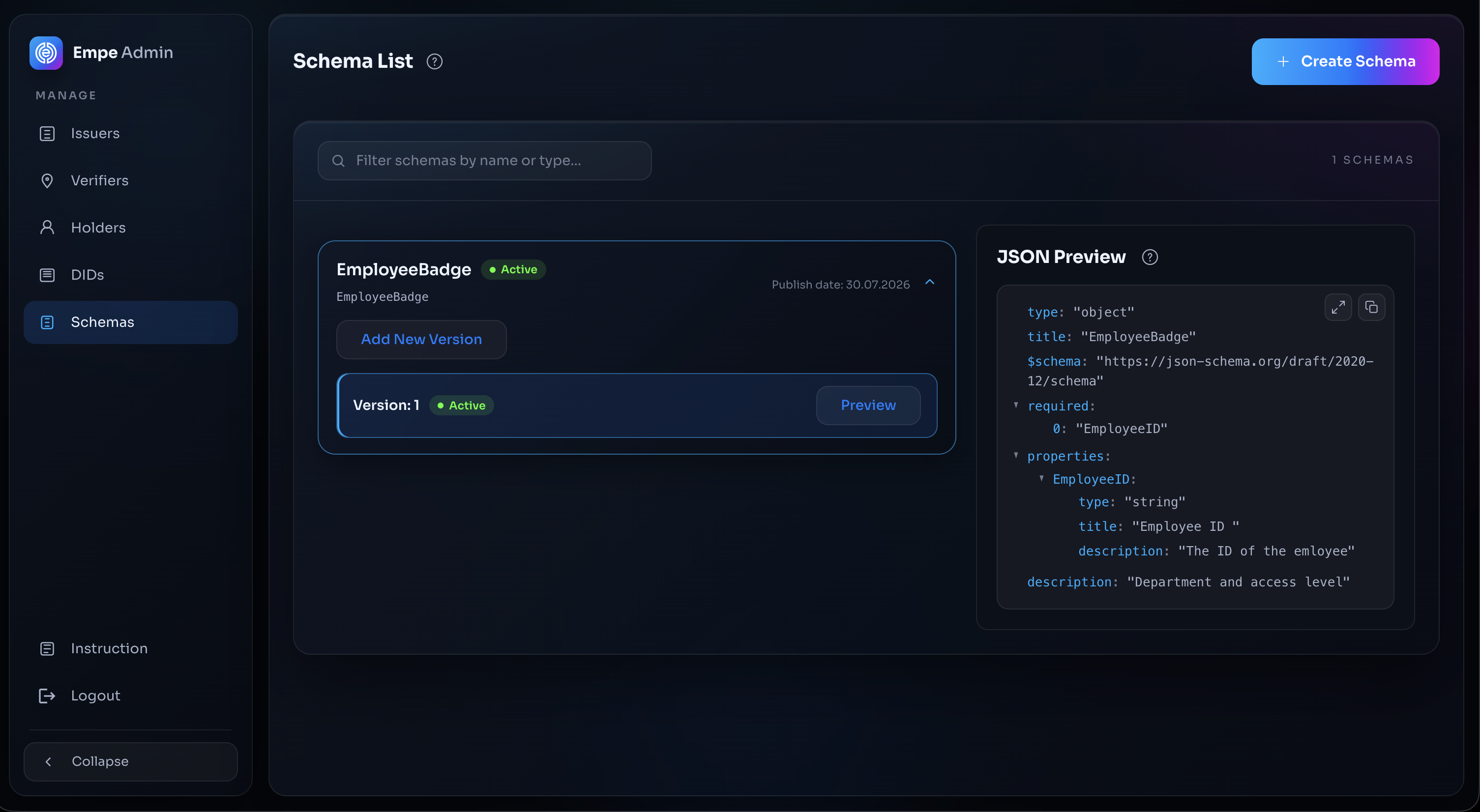
<figure><img src="/files/f8uaU1aRnMZJCvJjcX6K" alt="Schemas screen with the schema list"><figcaption><p>The Schemas screen with the schema list</p></figcaption></figure>

***

## Opening the Schemas Screen

1. Open the operator panel and click **Schemas** in the sidebar menu.
2. The screen lists every schema you have created, grouped by schema type (the VCT identifier, or the name when no VCT is set) and showing the **active** version of each.
3. Click an existing schema to view or version it, or click **Create Schema** to define one from scratch.

***

## Defining a Schema

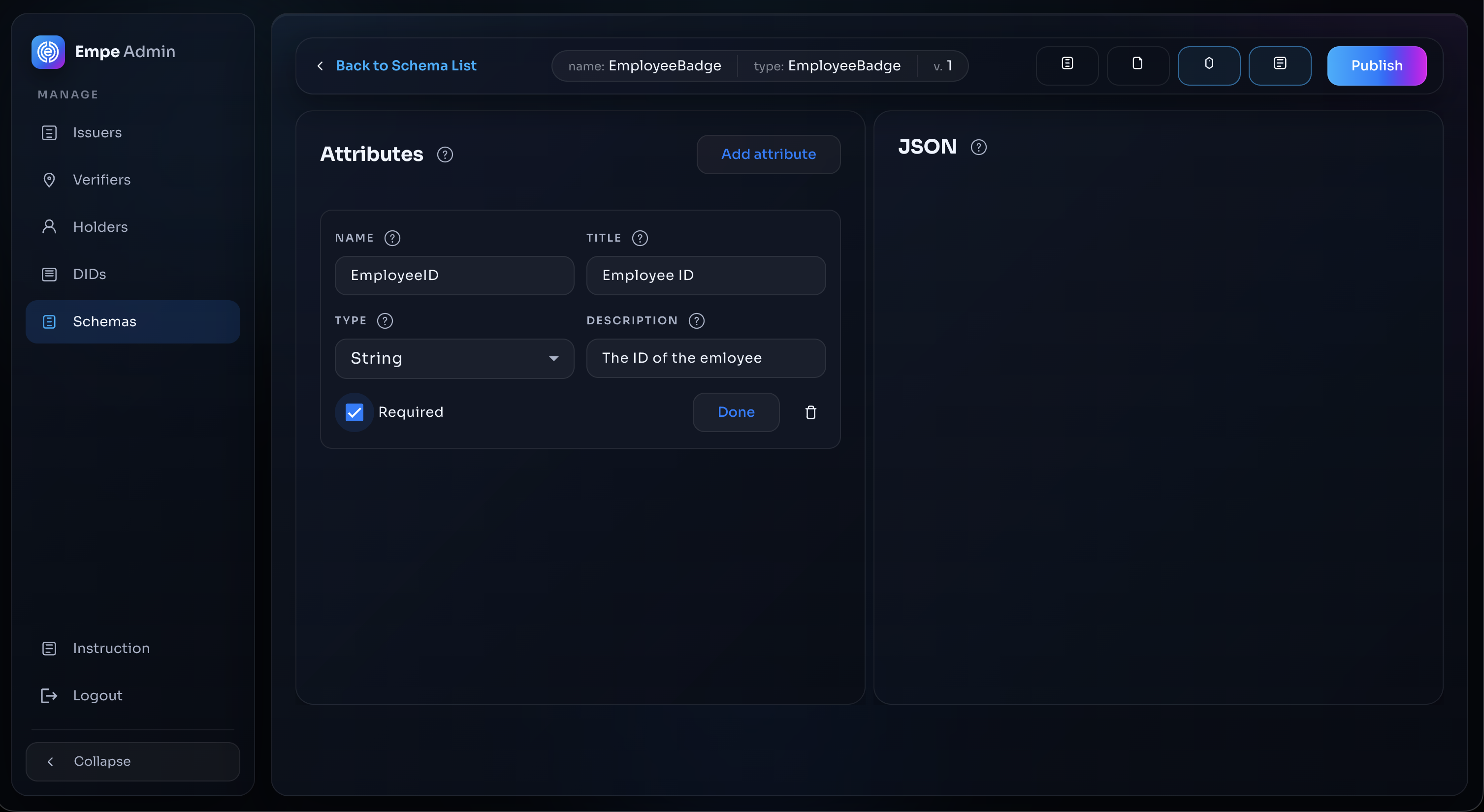
The schema builder authors a schema through an **attribute builder** form. Its columns are **Attributes**, **JSON**, **AI**, and **History**. You add each claim as an attribute using form fields, and the panel keeps an equivalent **JSON** view in sync (a Monaco-based editor with syntax highlighting, bracket matching, and live validation) that you can also edit directly. As you work, the panel validates the claim properties and flags errors inline before you can publish.

A schema is described by the following fields:

* **name:** The schema name, for example `EmployeeBadge`. Use a name that starts with a letter or digit and contains only letters, digits, underscores, and hyphens. The Define form itself also accepts spaces (and rejects dots), but the create-schema API the panel calls on publish enforces `^[A-Za-z0-9][A-Za-z0-9._-]*$`, so names containing spaces fail at publish.
* **version:** The schema version. The panel assigns it automatically — a new schema starts at version `1`, and each new version increments it.
* **type:** The Verifiable Credential Type (VCT) identifier, used for SD-JWT credentials, for example `EmployeeBadgeCredential`. The panel restricts this field to letters, digits, underscores, and hyphens; to publish a URL-style VCT such as `https://issuer.example.com/vct/employee-badge`, call `POST /schemas` directly with the `vct` field.
* **description:** A human-readable description of the credential. Required in the panel's Define form; optional when calling the create-schema API directly.
* **attributes (claims):** Each claim has a **name**, a **type**, an optional **title** and **description**, and a **Required** flag. Together the attributes form the JSON-Schema definition of the claims (`type`, `properties`, and `required`).

To define the schema:

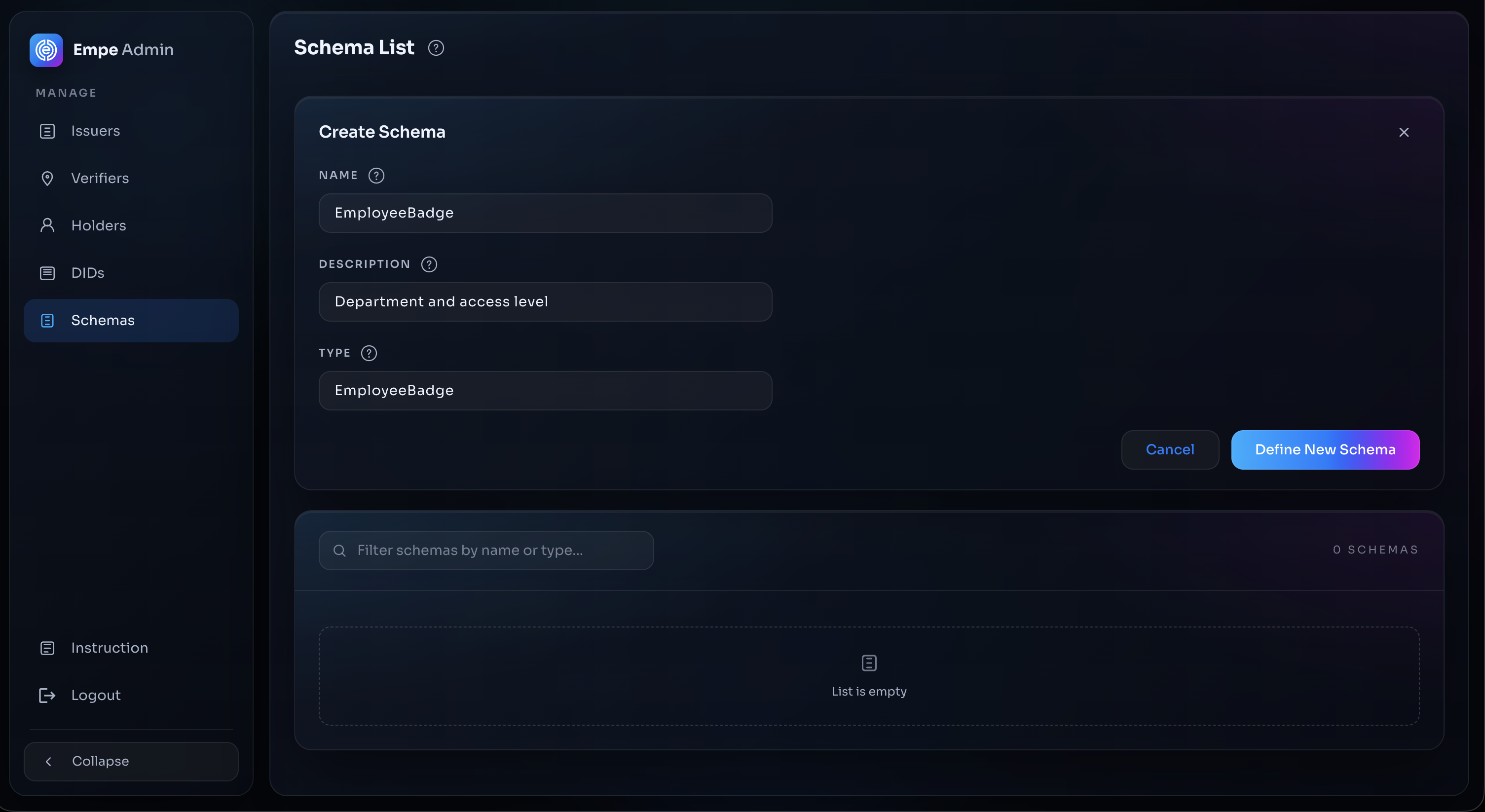
1. Click **Create Schema**, then enter the schema **name**, **description**, and **type** and click **Define New Schema** to open the schema builder.
2. Add each claim using the attribute builder: set its **name** and **type**, optionally a **title** and **description**, and tick **Required** for mandatory claims. The panel keeps the equivalent JSON view in sync under the **JSON** column, which you can also edit directly.
3. Click **Publish** to save the schema. It becomes the active version under its name.

<figure><img src="/files/TGSINereat0doiy8i4ec" alt="Create Schema form with name, description and type"><figcaption><p>The Create Schema form — the schema's name, description, and type, before opening the builder</p></figcaption></figure>

The panel publishes the schema as `{ name, version, description, vct, schema }`. A published schema defaults to both credential **formats**, `sd-jwt` and `jwt-vc-json`; the panel does not offer a format field. The `disclosureFrame` (SD-JWT selective-disclosure keys) is likewise an option on the underlying create-schema API request rather than a field in the Schemas screen.

<figure><img src="/files/uaQyZcJqo02jKZIloWS4" alt="Schema builder with Attributes and JSON"><figcaption><p>The schema builder — the Attributes list and live JSON view</p></figcaption></figure>

### Example Schema Definition

The attributes you add in the builder produce a schema definition like the one below. This illustrates the resulting create-schema request rather than something you type wholesale into a single editor. The `formats` and `disclosureFrame` fields are optional API-level options that the Schemas screen does not collect.

```plaintext
{
  "name": "EmployeeBadge",
  "version": "1",
  "description": "Employee access badge credential.",
  "formats": ["sd-jwt", "jwt-vc-json"],
  "schema": {
    "type": "object",
    "properties": {
      "employee_id": { "type": "string" },
      "full_name":   { "type": "string" },
      "department":  { "type": "string" }
    },
    "required": ["employee_id", "full_name", "department"]
  },
  "vct": "EmployeeBadgeCredential",
  "disclosureFrame": ["employee_id", "full_name", "department"]
}
```

***

## Versioning a Schema

Schemas are versioned by name. Each `name@version` pair is unique, so you cannot overwrite an existing version, but you can publish new ones alongside it.

1. Open an existing schema and click **Add New Version** to start a new version from its definition.
2. Adjust the claims in the attribute builder (or the synced **JSON** view). The panel assigns the next version number automatically (for example `1` → `2`); the version is not editable in the builder. To publish an arbitrary version string such as `1.1`, call `POST /schemas` directly.
3. Click **Publish**.

When you publish a new version, it becomes the **active** version for that name and the previous version is marked **superseded**. Superseded versions are retained and can still be viewed in the schema's version history; the schema list shows the active version by default.

<figure><img src="/files/f8uaU1aRnMZJCvJjcX6K" alt="Schema version panel"><figcaption><p>The schema's version panel, with the published version and Add New Version</p></figcaption></figure>

***

## Credential Configuration IDs

A schema combined with a format produces a **credential configuration id** of the form `Name@Version:format`. For the example above this yields:

```plaintext
EmployeeBadge@1:sd-jwt
EmployeeBadge@1:jwt-vc-json
```

These identifiers are what credential offers reference when issuing credentials, so a single schema published in two formats exposes two configuration ids.

***

## Assigning a Schema to an Issuer

Before an Issuer can offer a credential, the schema must be assigned to it.

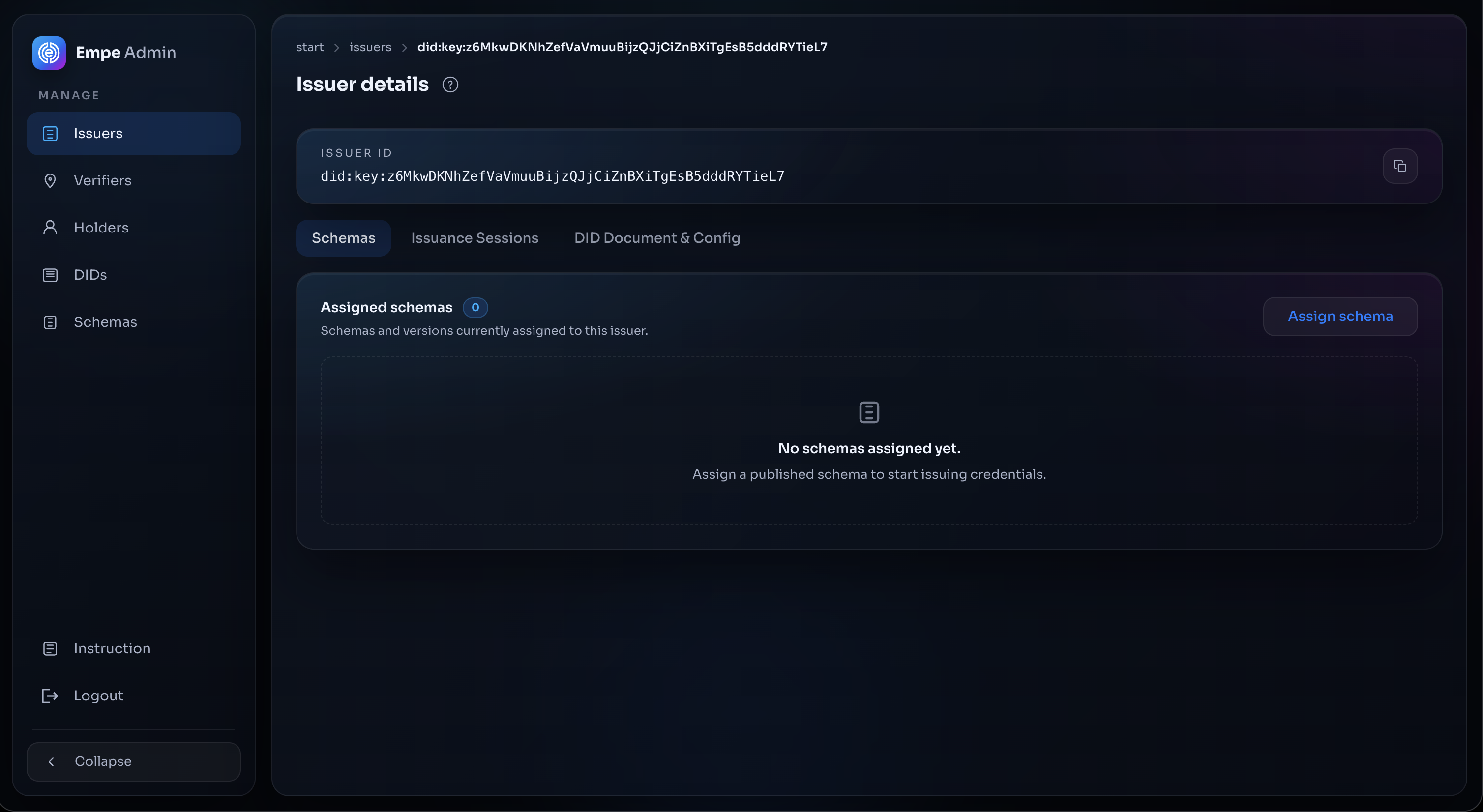
1. Go to the Issuer's detail page and open the **Schemas** tab.
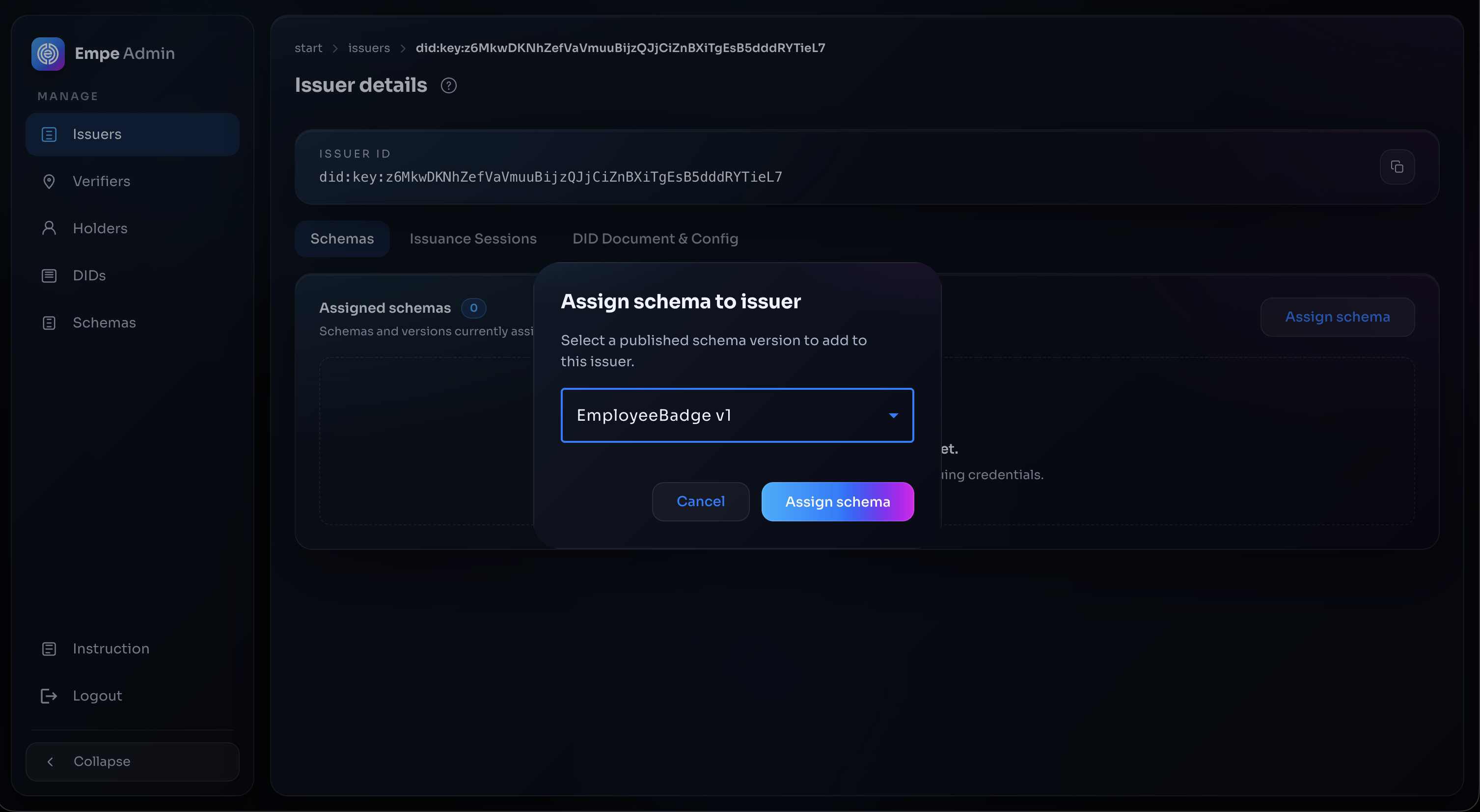
2. Select the schema to assign, identified by its `Name@Version`, for example `EmployeeBadge@1`.
3. Confirm the assignment.

The schema is added to the Issuer and its OpenID4VCI issuer metadata is refreshed so the credential configuration ids become available for offers. The Issuer can now issue credentials for any configuration id derived from that schema, such as `EmployeeBadge@1:sd-jwt`.

<figure><img src="/files/dTnfIzfuvbILeSpwWR8C" alt="Issuer detail Schemas tab with no schemas assigned"><figcaption><p>The Issuer's <strong>Schemas</strong> tab before anything is assigned — start from <strong>Assign schema</strong></p></figcaption></figure>

<figure><img src="/files/qsACBxBMJr2tG3wJyPgh" alt="Assign schema to issuer dialog"><figcaption><p>The Assign schema to issuer dialog</p></figcaption></figure>

***

For any issues while defining, versioning, or assigning schemas, please contact our support team for assistance.


---

# Agent Instructions
This documentation is published with GitBook. GitBook is the documentation platform designed so that both humans and AI agents can read, navigate, and reason over technical content effectively. Learn more at gitbook.com.

## Querying This Documentation
If you need additional information that is not directly available in this page, you can query the documentation dynamically by asking a question.

Perform an HTTP GET request on the current page URL with the `ask` query parameter, and the optional `goal` query parameter:

```
GET https://docs.empe.io/develop/intro/managing-schemas.md?ask=<question>&goal=<endgoal>
```

`ask` is the immediate question: it should be specific, self-contained, and written in natural language.
`goal` is optional and describes the broader end goal you are ultimately trying to accomplish on behalf of the user. GitBook uses it to tailor the answer towards what is most useful for that goal.

The response will contain a direct answer to the question and relevant excerpts and sources from the documentation.

Use this mechanism when the answer is not explicitly present in the current page, you need clarification or additional context, or you want to retrieve related documentation sections.